
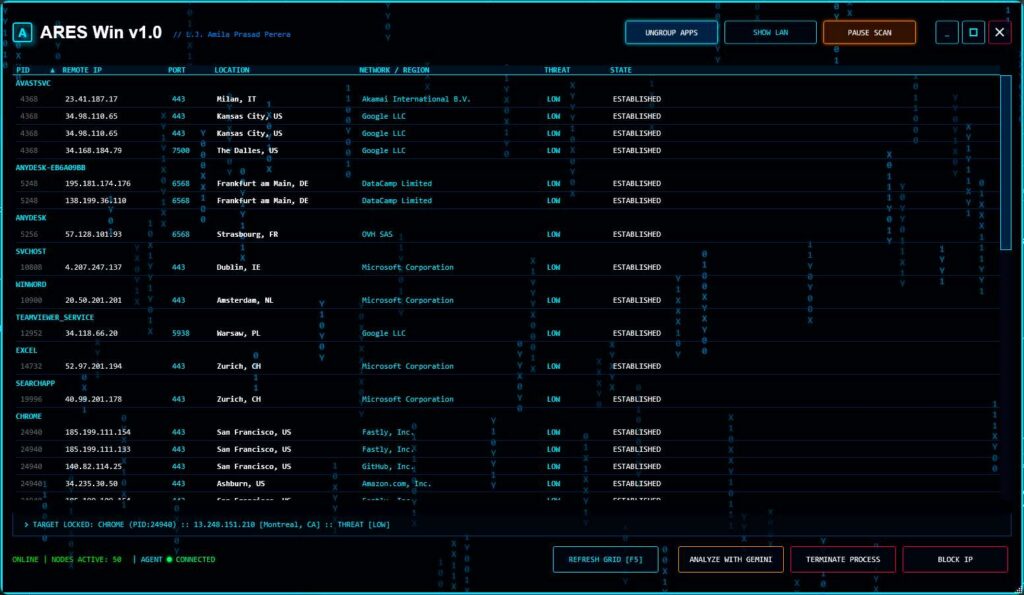
ARES Network Sentinel is a high-fidelity Windows network monitoring dashboard inspired by TRON / Cyberpunk aesthetics.
Built in C# (WPF) on .NET 8, ARES transforms standard Windows networking utilities into a visual command center for real-time situational awareness and active defense.
This is not packet sniffing.
This is visibility + control, executed cleanly on native Windows.
🚀 Quick Deployment
This application is portable and does not require installation.
Note: Run as Administrator to enable Firewall Blocking and Process Termination features.
Click here to download the latest version.
Extract the ZIP file to any folder.
Run AresWin.exe.
🟦 What is ARES?
ARES wraps native Windows networking utilities (netstat, netsh) and enriches their output with process intelligence, geolocation, and heuristic risk analysis, presented through a GPU-accelerated WPF interface.
Think of it as:
- A live network map
- A process-aware connection inspector
- A manual response console for suspicious activity
All without kernel drivers, services, or invasive hooks.
🔁 Real-Time Network Monitoring
- Parses live
netstatoutput - Displays active TCP connections
- Maps connections to local Process IDs (PID)
- Continuous refresh without blocking the UI
🌍 Geo-Intelligence Layer
- Enriches remote IPs using external API
- Displays:
- Country
- City
- ISP / ASN (when available)
- Designed for quick human triage, not forensic overload
⚠️ Threat Heuristics
- Flags high-risk or suspicious ports (example):
4444(common backdoor)3389(RDP exposure)
- Simple, explainable logic
(No black-box “AI says bad” nonsense)
🛡 Active Defense Controls
From the UI you can:
⚠️ Admin rights required for process termination and firewall rule creation.
🎨 TRON / Cyberpunk Visual Engine
- Custom WPF styles and neon color palette
- “Matrix-style” digital rain animation
- Hardware-accelerated rendering
- Designed to stay responsive under load
🧱 Tech Stack
| Component | Description |
|---|---|
| UI | Windows Presentation Foundation (WPF) |
| Runtime | .NET 8.0 |
| Networking | netstat, netsh (native Windows) |
| Data | System.Text.Json |
| API | HttpClient |
| Platform | Windows 10 / 11 |
⚙️ Build & Run
✅ Requirements
- Windows 10 / 11
- .NET 8 SDK
- Visual Studio 2022 (recommended) with:
- .NET desktop development workload
- Optional: Git for Windows (for cloning)
For full functionality (Terminate + Firewall block), launch the app as Administrator.
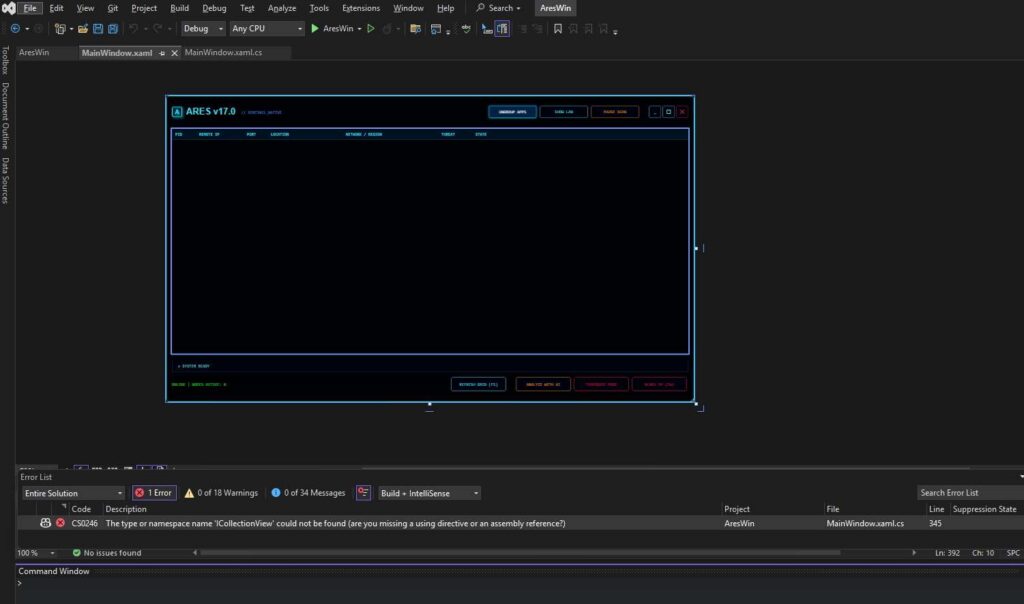
🟦 Build using Visual Studio 2022
- Clone the repository:git clone https://github.com/amilapcsgit/AresWin.git
- Open Visual Studio 2022
- Go to: File → Open → Project/Solution
- Select the solution file (
.sln) in the repo root (or open the project if no.slnis present). - Confirm:
- Configuration:
Debug(orRelease) - Platform:
Any CPU(or the project’s default)
- Configuration:
- Build:
- Build → Build Solution (or press
Ctrl+Shift+B)
- Build → Build Solution (or press
- Run:
- Press
F5(Start Debugging) - Or
Ctrl+F5(Start Without Debugging)
- Press
Run as Administrator (recommended):
Right-click the built .exe → Run as administrator
Visual Studio: Project → Properties → Debug
Enable Run as administrator (if available), or:
Lascia un commento